TL;DR
This Pictory AI review found that it can turn a script into a usable, professional-looking video without complex editing skills. It earned 9.5/10 in my hands-on test because the visuals matched the script, the voiceover sounded natural, and editing each scene was straightforward. You also see the estimated credit cost before generating, so you don’t have to fear losing credits on failed experiments. It is best for YouTube creators, marketers, and social media managers, but not for cinematic video production.
Introduction
Pictory AI can turn your script into a usable video in minutes, even if you have no editing experience.
But “easy text-to-video” does not always mean publish-ready because the auto-selected visuals can miss the script, AI voices may sound robotic, and one poor render can drain your credits before you get anything useful.
That is why I tested Pictory using a real text-to-video project (I have also embedded the test video below). I wanted to see whether it could match the visuals with my topics and let me edit each scene without a complex timeline.
The result surprised me because Pictory showed the estimated credit cost before generation, gave me direct control over every visual, and produced a finished video with aligned B-roll.
However, as per my observation, it was not perfect for cinematic production, but it handled practical YouTube and marketing content very well.
So, in this Pictory AI review, I will walk you through its workflow, strengths, weaknesses, pricing, common problems, and alternatives, so you can decide before investment.
Table of Contents
What Is Pictory AI?
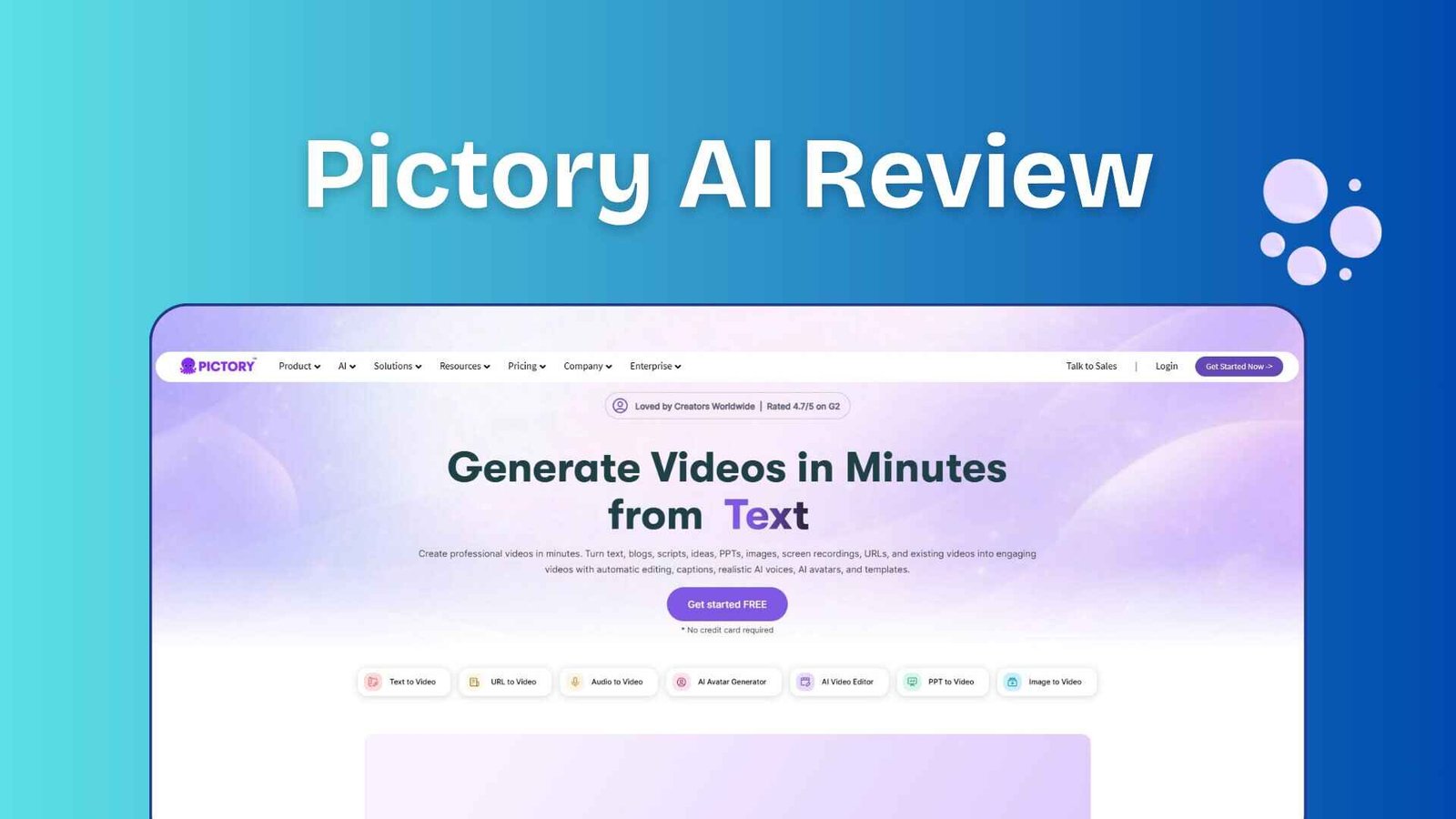
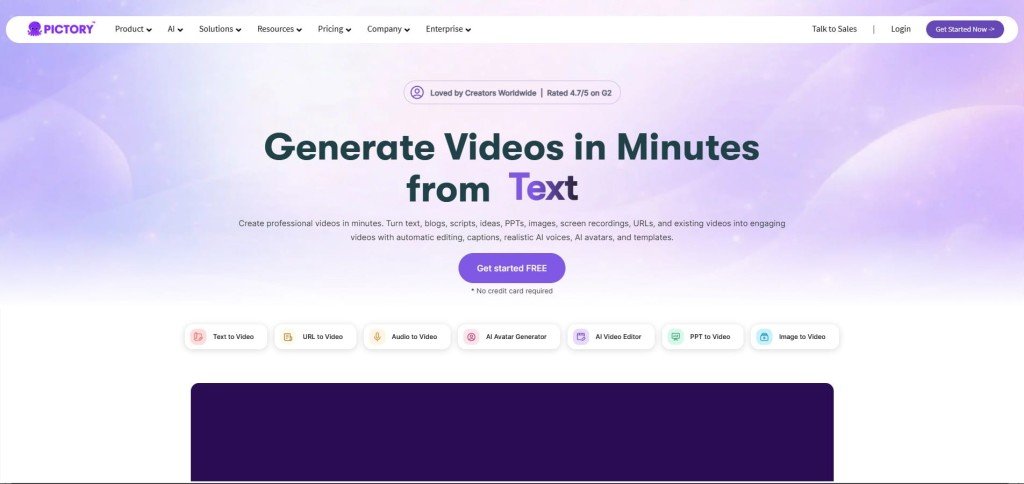
Pictory is an AI video maker that turns scripts, blog posts, URLs, presentations, images, and recordings into videos. It brings stock visuals, AI voiceovers, captions, music, and scene editing together, so you do not need complex editing software.
Key Strengths (Pros)
- Easy for beginners: The clean interface helps you create a finished video without learning complex editing software.
- Full scene control: You can replace mismatched visuals, rewrite text, add transitions, and adjust every scene before rendering and playing with the stock visuals takes no credits.
- Transparent credit usage: Pictory AI estimates the required credits before generation, and I think this will help you avoid wasting your AI credits.
- Natural voiceover options: You can use ElevenLabs voices, record your narration, or clone your voice for more human-sounding content.
- Large media library: Stock visuals, captions, and over 15,000 music tracks will help you to make your AI video attractive to your audience.
- Useful long-form settings: Video goals, tone, aspect ratio, scene structure, and video length (I have found Pictory, a long-form AI video generator) provide more control over YouTube content.
- Risk-free testing: The 14-day free trial requires no credit card and includes 50 AI credits for testing the workflow, which is pretty fine.
Key Weaknesses (Cons)
- Not built for cinematic production: I know that Pictory is fine for professional YouTube video production, but trust me, do not go with Pictory if you require cinematic content.
- Automatic visuals still need checking: The AI selected relevant B-roll in my test, but you may need to replace scenes when covering other topics.
- Some AI voices can sound robotic: My first voice choice felt unnatural, although switching to another voice fixed the issue quickly.
- Free exports include a watermark: You can test the complete workflow during the trial, but you need a paid plan for watermark-free videos.
In my observation, Pictory is easy to use, and there is no doubt about it, but producing a professional-looking result still requires a quick scene-by-scene review from you.
I have tested multiple AI video generators, and after testing all of those, I believe AI tools only provide you with the results if you input your personal experience and creativity.
Why You Should Trust This Review
I did not judge Pictory from its homepage, and obviously, this is not the motto of SaaS24Reviews.
To give you a genuine insight, I signed up for the 14-day free trial and created a real 20–30-second video from the script below:
“Are you still using robotic-sounding text-to-speech tools? The landscape of AI voice generation has changed dramatically this year.”
I tested the complete workflow, like script input, scene creation, stock selection, AI voiceover, captions, music, visual replacement, credit usage, and final rendering.
The finished video took roughly 2–2.5 minutes to render. Its visuals, B-roll, and narration matched the script well, although I replaced the first robotic-sounding voice.
I also contacted customer support with a test issue to measure responsiveness. This review therefore reflects hands-on use, including the parts that worked and the limitations you should understand before paying.
Pictory AI Review Video
This is the Pictory AI tutorial video you can watch.
How to Make Usable AI Videos with Pictory AI: A Step-by-Step Process
Pictory can generate everything all together in one go, but you should treat that output as a first draft. In my experience, the real value comes from how easily you can correct each scene before using your credits on the final render.
Step 1: Sign Up and Grab a 14-Day Free Trial
Click the link to the official site and enter your email so that you get a 14-day free trial without sharing your credit card details.
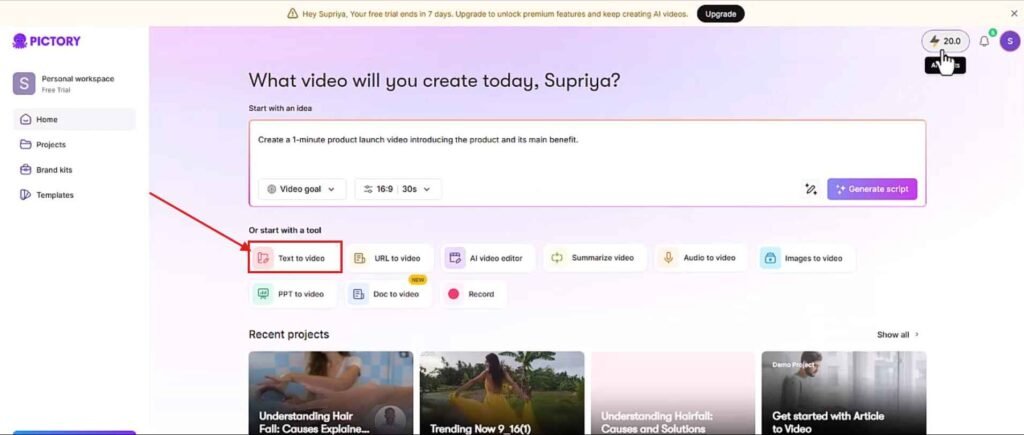
After doing so, you’ll enter into a clean dashboard with some specific options on the right side, like Home, Projects, Brand Kits and Templates.
In the centre, you’ll find some major options such as
- Text to video
- URL to video
- AI video editor
- Summarize video
- Audio to video
- Images to video
- PPT to video
- Doc to video
- Record
These are all the features of Pictory AI, and this review blog is going to showcase how you can easily make a YouTube video by using Pictory’s text-to-video feature without complex editing.
Step 2: Text to Video Workflow
Then select text to video, and it’ll open a new window where your job is to paste the script or an idea.
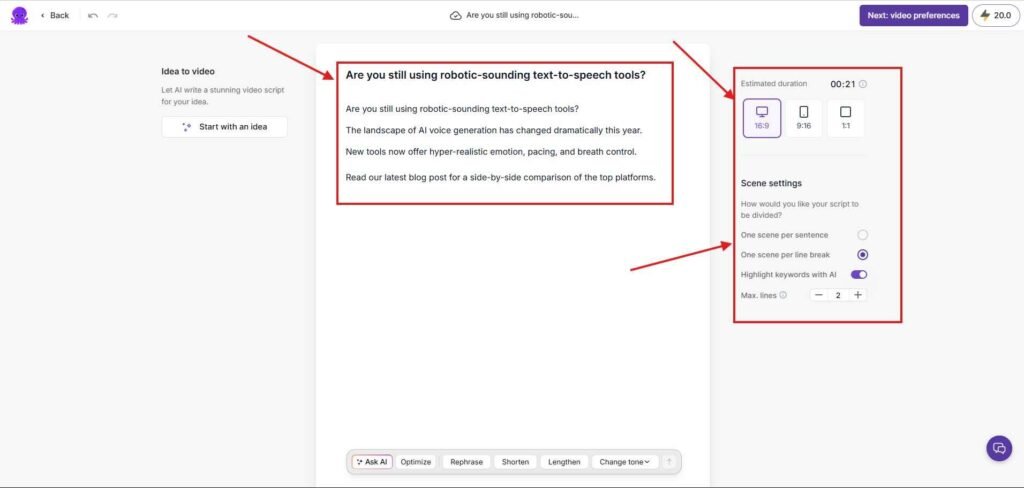
This is the first step of this entire process, and the moment you paste your script, it will automatically provide you with an estimated video duration, which I liked.
I pasted the script, and it showed an estimated video duration of 21 sec. Then I chose the aspect ratio (16:9 for YouTube) and adjusted the scene settings.
The scene setting is really useful for content creators like me, as it allows you to adjust the flow of the script while creating long-form YouTube videos and also improves the overall output of the video.
After adjusting all of these, simply click the ‘Video Preferences‘ button.
Step 3: Adjust Video Preference
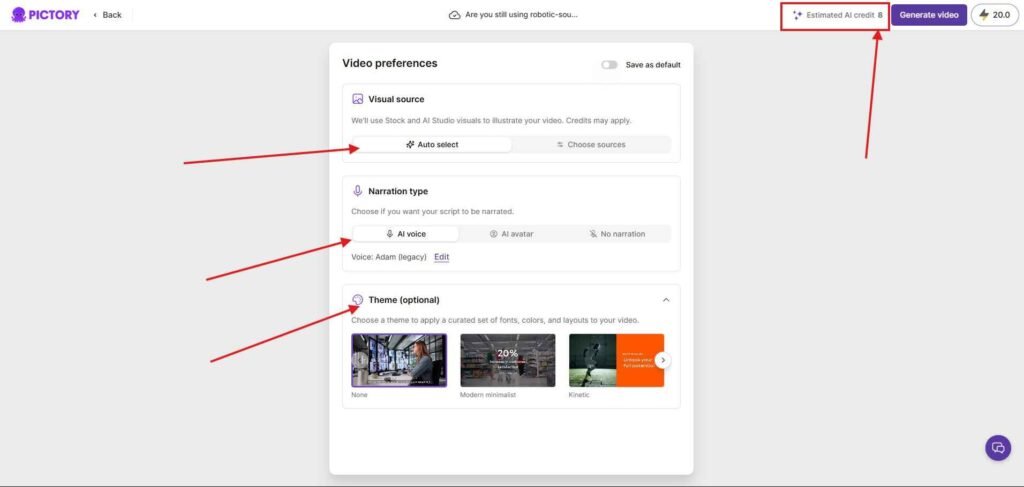
Now, you are in the visual direction section, and it is divided into three parts, like
- Visual source
- Narration type
- Themes
In the visual source section, you can turn on the auto-select option, or you can choose sources of your visuals, such as stock media, AI Studio images and AI Studio videos.
I selected auto-select option.
Next, it’s time to choose the narration type.
It’s not a fancy thing, and every AI video generator has this feature in common.
Here, you can add an AI voice from ElevenLabs, select an AI avatar if you like, or you can add no narration if you try to make your video in silent.
Plus, you can also clone your voice and use it again and again.
I tried some AI voices and found a better one (Adam) for my video.
Here is one thing that I want to highlight: showcasing the estimated AI credits. Pictory AI shows you the estimated credit that you need to generate this video.
In the theme section, you can select any of the themes as your preferences. I have selected to none as I don’t need any theme.
Now after doing all these settings, click generate.
Now, it will analyse your video for a couple of seconds and then take you to the video editing dashboard.
Step 4: AI Video Editing
This section is quite straightforward and very easy for a beginner.
On the left side, you’ll find a scene editing dashboard, where you can remove, add or link your scenes as per your preferances.
Just below the main video, you’ll find a timeline where you can add or change the AI voiceover, add transitions, trim the video, or even add background music to make your video more appealing to the audience.
I replaced one scene by searching for “blog reading,” and the tool immediately showed more relevant options.
Basically, Pictory gives you complete creative freedom to play with your AI video.
After setting all of these, simply click generate.
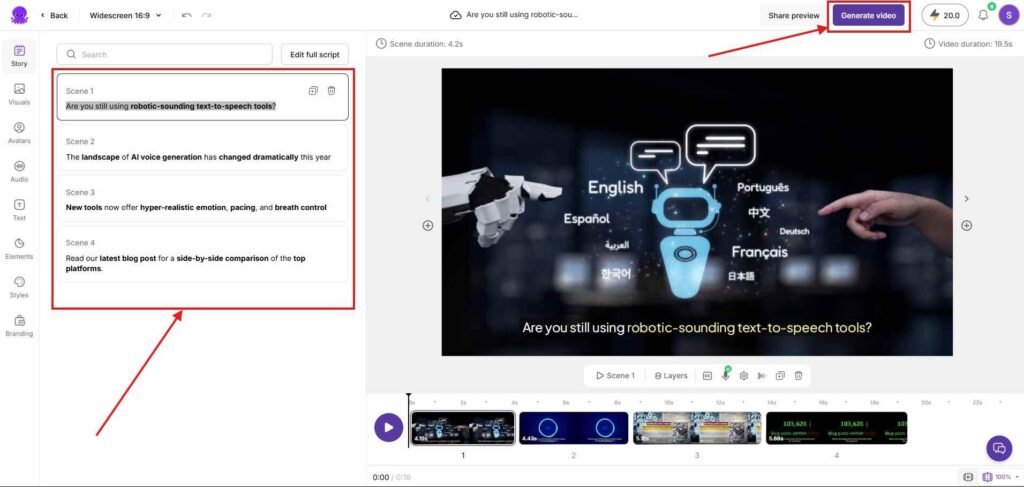
However, I have noticed here an interesting thing, which is that my AI credits are still not deducted. This is very important because I have used many AI video tools, and what I found is that each of them deducts credits before the final render.
But that is not happening here.
Step 5: Preview Before the Final Render
Now watch the complete video and check the visuals, pronunciation, captions, music level, and scene timing. This final review matters because a usable video is more valuable than a quick but poorly matched AI draft.
When you found everything looks right, then generate and download the finished video. My test rendered in approximately 2–2.5 minutes.
Pictory AI Common Issues and Fixes
Pictory makes video creation easier, but its first draft will not always be publish-ready. Most problems can be fixed inside the editor without starting again.
| Common issue | Practical fix |
|---|---|
| Visuals do not match the script | Select the incorrect scene and search the stock library using a specific phrase instead of a broad keyword. |
| AI voice sounds robotic | Preview several voices, adjust the pacing, or record your own voiceover. Voice cloning can also keep future videos consistent. |
| Scenes feel too long or crowded | Split the script into shorter scenes and highlight only the words your viewer needs to remember. |
| Free-trial export has a watermark | Finish testing your workflow first, then upgrade only when the output is good enough to publish. |
I would recommend you to go with the safest approach like, test a short script, edit each scene, and preview everything before the final render, because that prevents poor visuals and unnecessary credit loss.
Pictory AI Pricing
Pictory offers a 14-day free trial with premium features, and you do not need a credit card to start. This gives you enough room to test a real script, correct the scenes, and judge whether the output is usable before paying.
| Plan | Current annual price | Best for |
|---|---|---|
| Starter | From $25/month | Individual creators making regular social or YouTube videos |
| Professional | From $35/month | Creators needing voice cloning, custom avatars, and longer-video summarization |
| Team | From $119/month | Teams sharing brand assets and producing videos together |
| Enterprise | Custom | Larger organizations requiring custom usage and support |
The Starter plan includes 200 video minutes, one brand kit, and 60 minutes of ElevenLabs voices. I believe that for most individual creators, this is the sensible place to begin.
One thing I mention here is that the prices above reflect Pictory’s annual promotional rates available in July 2026 and may change.
Pictory AI Alternative
The right Pictory AI alternative depends on what you create. For script-to-video content, Fliki is the closest and most affordable option you can check.
I have written a detailed Fliki AI review, where I shared my hands-on experience about Fliki, an AI video generator.
Fliki: Closest and More Affordable Alternative
Fliki is the closest alternative because it turns scripts, blog posts, presentations, and ideas into videos with stock visuals, captions, music, and AI voices. Its Standard plan currently starts at $21/month when billed annually, compared with Pictory Starter at $25/month.
InVideo AI: Best for Prompt-Based Video Creation
InVideo AI is better when you want to describe an entire video in one prompt and let AI handle the script, visuals, voiceover, and initial edit. It provides faster long AI video creation for the YouTube workflow, although credit usage can vary based on the models and media you select.
HeyGen: Best for AI Avatars and Translation
I have also tested this AI video tool and published a detailed HeyGen review to showcase my real experience with this tool.
I think HeyGen is a stronger choice when you need a realistic AI avatar instead of a stock-media video. Its Creator plan supports voice cloning, 175+ languages and dialects, and videos up to 30 minutes, making it useful for translated explainers and presenter-led content.
Synthesia: Best for Professional Training Videos
Synthesia is also an alternative to Pictory AI, and this training video maker is designed for structured, avatar-led training and corporate communication. Choose it over Pictory when consistent presenters, multilingual delivery, and workplace-ready templates matter more than YouTube-style B-roll.
Overall, I would recommend you to start with Fliki if you want the closest and cheaper text-to-video workflow.
FAQs About Pictory AI Review
How Long Is the Pictory Free Trial?
Pictory offers a 14-day free trial with access to its premium features. You can test the workflow without entering credit card details, although free-trial exports contain a watermark. Confirm the latest terms on Pictory’s website.
Is There Anything Better Than Pictory?
Yes, but only for specific use cases. Fliki is a close and more affordable text-to-video alternative; HeyGen is better for AI avatars and translation, and InVideo AI suits creators who prefer prompt-based generation.
Is Pictory a Good Video Editor?
Pictory is a good AI editing tool for beginners creating YouTube, marketing, and social media videos. You can replace visuals, edit text, change voiceovers, add captions, insert transitions, and use stock music without handling complex timelines. However, it is not the right editor for cinematic production or advanced manual effects.