
![You are currently viewing Akool AI Voice Generator: Honest Review with Complete Guide [2026]](https://saas24reviews.com/wp-content/uploads/2026/01/Akool-ai-voice-generator.png)
I have a kids’ YouTube channel, where I post stories for my audience. However, I’ll never forget the feeling I had last month when my voice artist had a health issue, and I had to find an alternative option, like the Akool AI voice generator.
I know this pain personally because I experienced how quickly my YouTube views dropped after changing my voice-over artist.
Then I decided to move towards something more reliable so that I can control it as per my terms and conditions. That was the time when I first realised the importance of an AI voice generator.
Relying on human voice artists meant delays, uncertainty, rising costs, and zero control when something went wrong, which was the incident that pushed me to test the Akool AI Voice Generator.
This AI tool is designed for YouTubers, marketers, educators, and business owners who need clear, professional voiceovers without the high cost, delays, or insecurity that often come with traditional recording. Plus, Akool Voice Lab promises you speed, consistency, and studio-like results on demand.
In this in-depth review, I’ll walk you through everything the Akool AI Voice Generator offers: its core features like text-to-speech, voice cloning, and voice transformation; pricing details; and real pros and cons from my testing.
So, let’s dive in.
Table of Contents
What is Akool AI Voice Generator?
Akool AI Voice Generator, often referred to as Voice Lab within the platform, transforms written text into natural-sounding speech within minutes. Think of it as your on-demand AI voice studio, which eliminates the need for expensive equipment, scheduling headaches, and per-word rates.
The Akool AI voice generator operates on advanced text-to-speech (TTS) technology, but what caught my attention is how it goes beyond basic voice control settings. During my testing, I explored three core capabilities that set it apart:
- Akool AI voice cloning, where you can create custom voice models for your film and game dubbing, historical voice recreation, documentary voiceovers, and more.
- Akool AI voice changer lets you instantly transform your voice during live streams, social platforms, or gaming sessions to create unique, engaging identities. I’ve also found it useful for privacy protection in online interactions and for adding personalized audio effects that elevate videos, podcasts, and other creative audio projects.
- Akool AI Text-to-speech helps you with producing high-quality AI audio for podcasts, audiobooks, and videos. Plus, you can automate customer service with natural, fast voice responses.
What is Akool Used For? (Real-World Applications)
I tested Akool AI across different content scenarios to see where it truly shines, and honestly, I was surprised by how versatile it turned out to be. Whether you’re a solo creator or managing a content team, these are the real-world applications I find most valuable.
- Content Creation & YouTube Videos.
- Marketing & Advertising.
- E-Learning & Training.
- Podcasting & Audio Content.
- Social Media Content.
Key Benefits of Using Akool AI Voice Generator
After three weeks of hands-on testing, I’ve identified six core benefits that make Akool AI Voice Generator worth considering, especially if you’re tired of the traditional voiceover grind.
Let me break down the real value I experienced beyond the marketing promises.
Consistency & Scalability Without the Headaches
One of my biggest frustrations with a freelance voice artist was voice inconsistency. Different takes, different energy levels, and different recording setups. It was noticeable.
However, with Akool AI voice generator, every video sounds like it came from the same studio session, and when I needed to scale up production (going from 4 videos to 10 per month), there was zero quality drop. The AI voice generator doesn’t get tired, doesn’t have bad recording days, and doesn’t need breaks.
Multilingual Capabilities That Open New Markets
This feature blew me away because Akool AI supports up to 175 languages and 900+ voices, which means you can repurpose your English content into Spanish, French, and German voiceovers without hiring translators or multilingual voice actors. For businesses targeting global audiences, this is a massive unlock.
Customization & Control Over Your Brand Voice
Akool gives you control over tone, pitch, speed, stability, and style. This can help you fine-tune voiceovers to match your brand personality instead of settling for generic AI output.
Time Savings You’ll Actually Feel
Akool lets you generate voiceovers in minutes instead of days. From my experience, this alone can cut production time by more than half, especially for YouTube, ads, or short-form content.
No Technical Skills Required (Seriously)
Despite its advanced features, Akool is extremely beginner-friendly. If you want professional voiceovers without technical friction, Akool delivers exactly that.
My Hands-On Experience with Akool AI Voice Generator
I spent three weeks testing Akool AI Voice Generator for a YouTube documentary project script that I’d written for one of my clients to see how it holds up in real-world conditions.
For this project, I evaluated voice quality, accent against my expectations (would a listener notice it’s AI?), financial constraints, ease of customization (could I tweak tone and pacing without frustration?), and output speed (did it actually save time?).
Here’s what I actually experienced…
What Worked Well in Akool AI Voice Generator
Voice Quality Was Better Than Expected
I admit that Akool AI voice generator does have some limitations, as this is not a pure AI voice generator platform like ElevenLabs. However, I was genuinely shocked to see that this tool performed much better than other all-in-one AI tools in the market.
Initially, I didn’t get that much good output from the Akool AI voice generator, but when I added my documentary script to the Akool Text-to-Speech feature with reliable settings like speed, stability, similarity, and style exaggeration (Higher = more dramatic), I noticed a significant change.
But to get the best result, you have to always divide your script into small parts so that you can control its flow and narrative.
Overall, in terms of voice quality, this performs very well than others all in one AI tools.
Customization Was Intuitive
Akool AI’s advanced voice control settings (speed, stability, similarity, Style Exaggeration) gave me smooth control without overwhelming the interface. I adjusted the speed of my documentary narration to be slower and more deliberate. The preview function lets me test tweaks instantly before committing to a full render, and it is super beginner-friendly.
Voice Cloning Delivered on the Promise
I tested the voice clone feature by uploading 60 seconds of audio samples, as this site allows audio length between 5s to 60s. Within 10 seconds, I had a custom AI voice that sounded remarkably close to the original. You can use any audio that you like to clone. This feature alone justifies the price for businesses building a recognisable audio brand.
Multilingual Dubbing Was Shockingly Good
I converted an English documentary script into Hindi using Akool’s multilingual TTS engine. The accent authenticity wasn’t perfect, but it was good enough.
What Could Be Better in Akool AI Voice Generator
Now for the honest critique, because no tool is perfect, and you deserve to know the rough edges.
Not All Voices Are Created Equal
Out of the many voices, maybe 20–30% sounded truly “premium” to my ear. Some of the older voices in the library had that AI flatness; however, it’s fine for internal training videos, but not for social content. I wish Akool made it clearer which voices are their newest, highest-quality models. Sorting through the library to find the gems took longer than I’d like.
Emotional Range Has Limits
When I needed a voiceover with genuine excitement or empathy (think motivational speech or heartfelt testimonial), Akool struggled. The style exaggeration (Higher = more dramatic) helped, but there’s still a ceiling on emotional depth.
For highly expressive content, a human voice actor still wins. I’d use Akool for informational, educational, or straightforward sales content, not for content that requires a dramatic range.
How to Create Professional Voiceovers with Akool AI (Step-by-Step)
Let me walk you through exactly how I created my first professional voiceover with Akool AI Voice Generator, from signing up to downloading the final audio file. I’m breaking this down into actionable steps so you can replicate my workflow, whether you’re a complete beginner or just looking to speed up your process.
Step 1 — Sign Up for Akool AI
Getting started with Akool AI is straightforward. Here’s what I did:
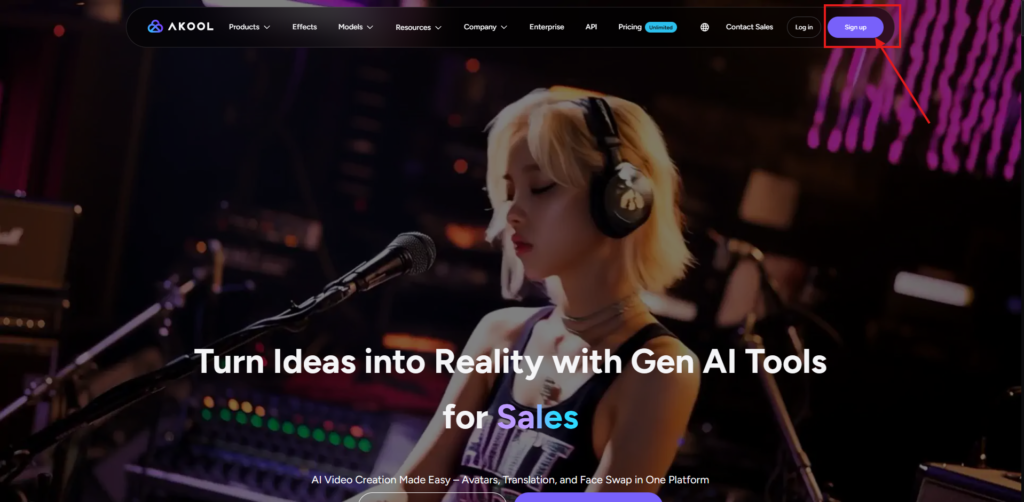
Visit the Akool AI website and click the “Sign Up” button located in the top-right corner.
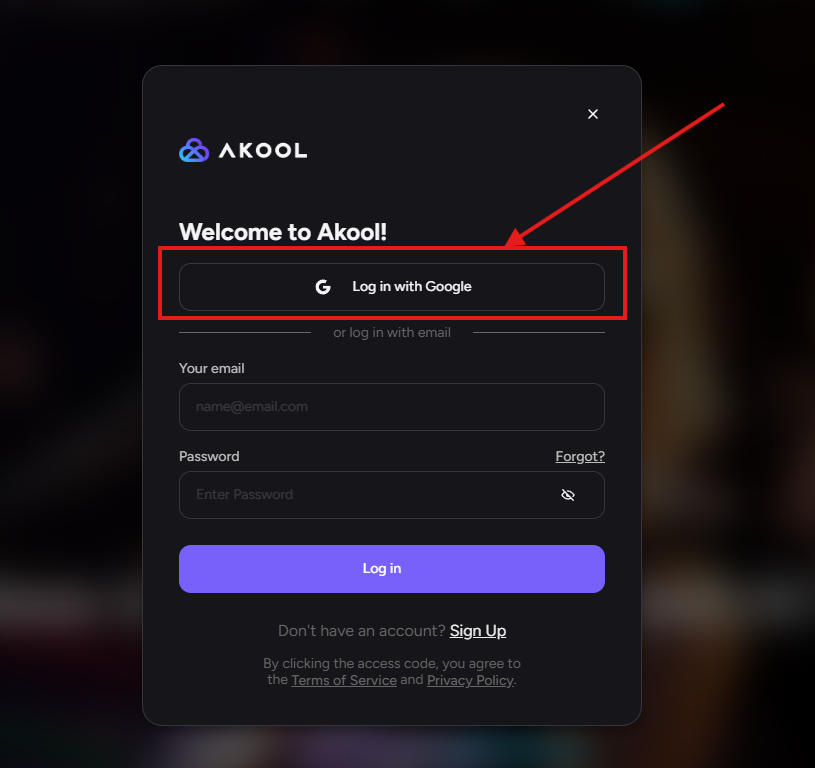
Now enter your details by providing your email address and preferred password, or you can simply log in with your Google account from your device. I chose “Log in with Google.”
Now I entered the world of Akool AI. This is the dashboard for you to access the Voice Lab feature. As you can see here, Akool AI provides me with 50 credits for signing up and 25 additional daily credits, so that you, like me, can use its features without spending a penny at first. In addition, 3 day free trial is also provided for you.
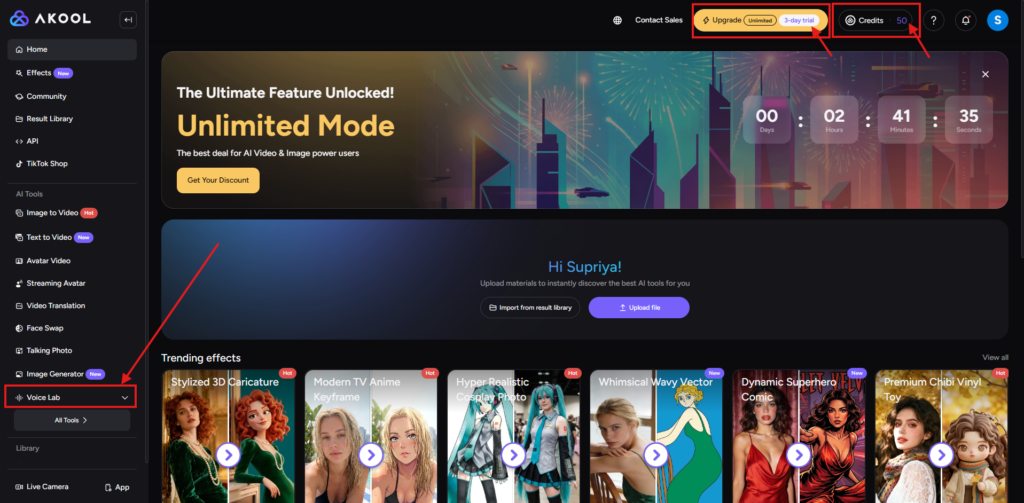
Now, click the Voice Lab option, and it’ll open 3 sections like
- Text to Speech.
- Voice Clone.
- Voice Changer.
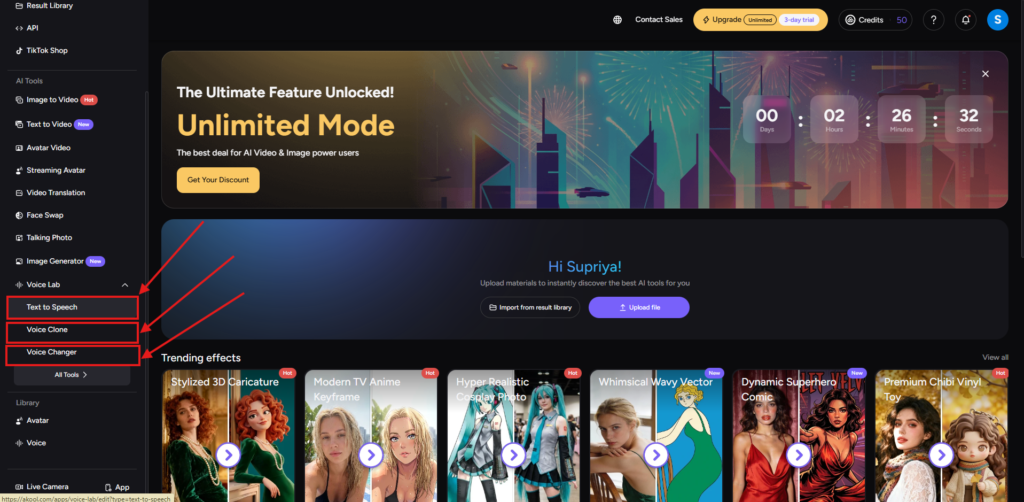
Text to Speech: Explore the Dashboard
I selected the Text to Speech option at first and entered into its world… Now, here you can see the script section along with some important features like voice, speed, stability, similarity and style exaggeration.
The Script section is where you can paste your pre-written script. Voice section where Akool AI offers multiple voices for you to choose from for your voiceover. The Speed section allows you to adjust the speech. The Stability section allows you to control voice consistency (Higher = more consistent, but more monotone and lower is better for long texts). The Similarity section allows you to boost voice clarity (Higher = clearer and more similar). The Style Exaggeration allows you to control how expressive the voice is (Higher = more dramatic, but less stable).
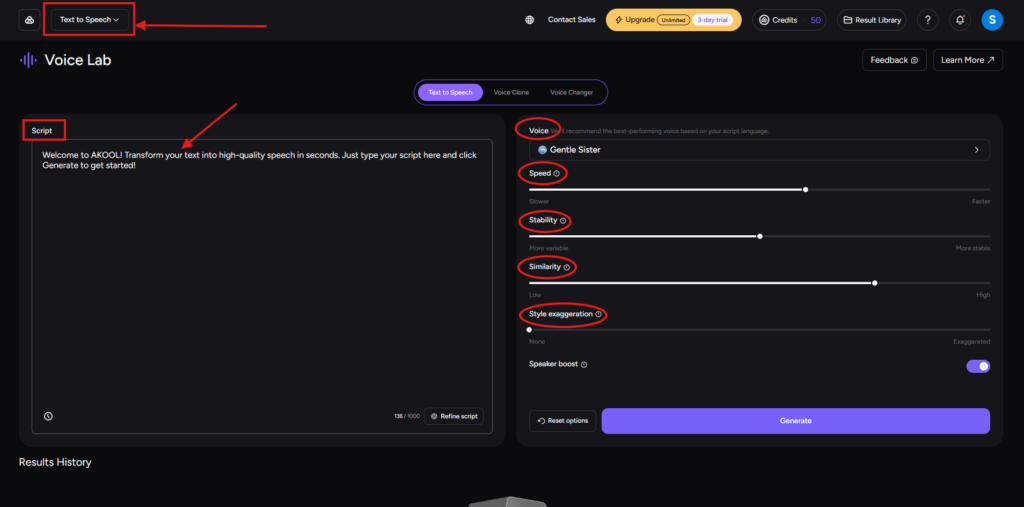
Now I pasted the script for my YouTube voiceover and adjusted the settings according to my needs… Here, I want to address something deep regarding the Voice section.
Simply tap the voice section, and a window will appear to you. Here, multiple filters are available so that you can get the quality of voice you need for your project.
I selected a “narrative & story” style voice for my project and hit confirm. Here is the one thing that I can mention. The Provider section allows you to import voices from voice providers like “Azure, Cartesia, ElevenLabs and Hailuo AI.”
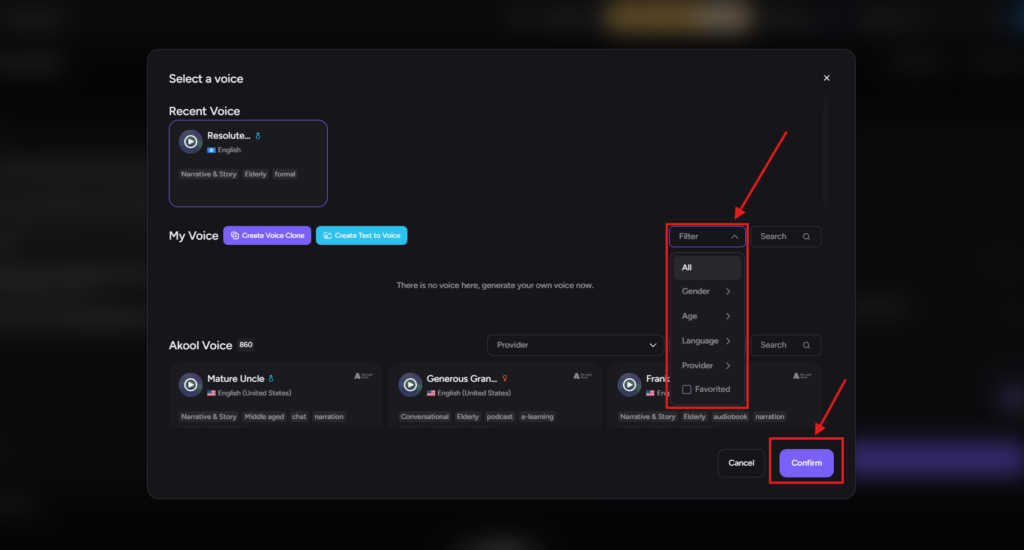
I selected a deep voice named “Resolute Uncle” for my script, adjusted some settings (Speed – 1, Stability – 50%, Similarity – 75%, and Style exaggeration – 50%) and hit generate.
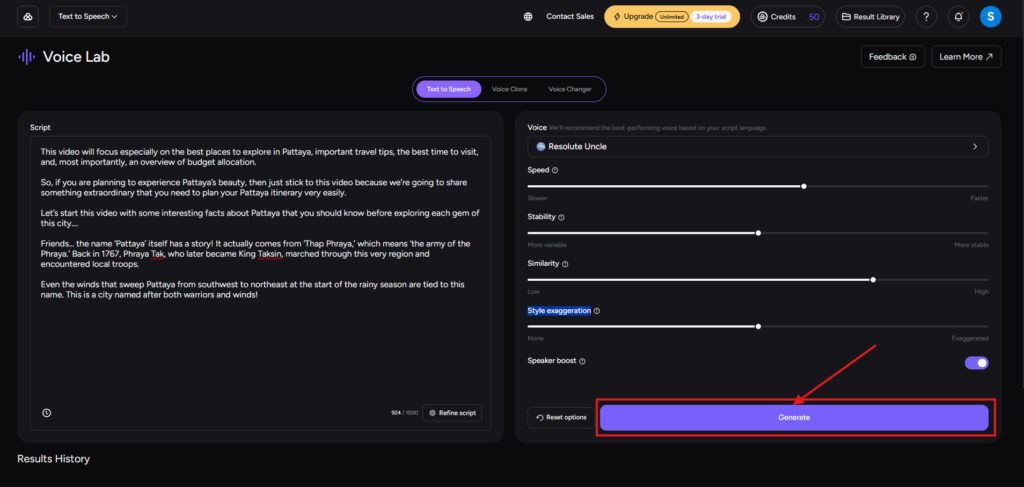
After hitting the generate option, Akool AI will take some time, and you’ll find your voiceover just below this section. Here, you can listen to your voiceover to check the quality. If you are satisfied, then just press the download button.
Mine was very attractive and deep narration, and I was very satisfied with the result Akool AI voice generator provided.
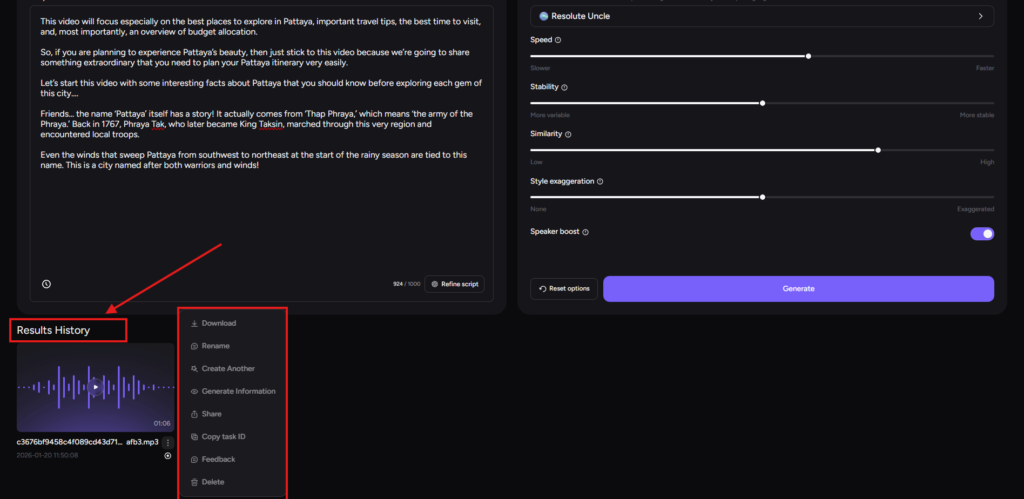
Here are the TWO results….
However, if you adjust settings in the right way, then you can get far better results than me.
Akool AI Voice Clone: Explore the Dashboard
Now, let’s move to the voice clone feature. Just upload an audio file that you want to clone, or you can record your own voice to play with, because this is the place where you can clone any voice.
The setting I truly love here is the “scenario” in the Tag Settings section. This scenario section will help you to choose the preferred mode (like news, story & narration, social media etc) for your voice-over.
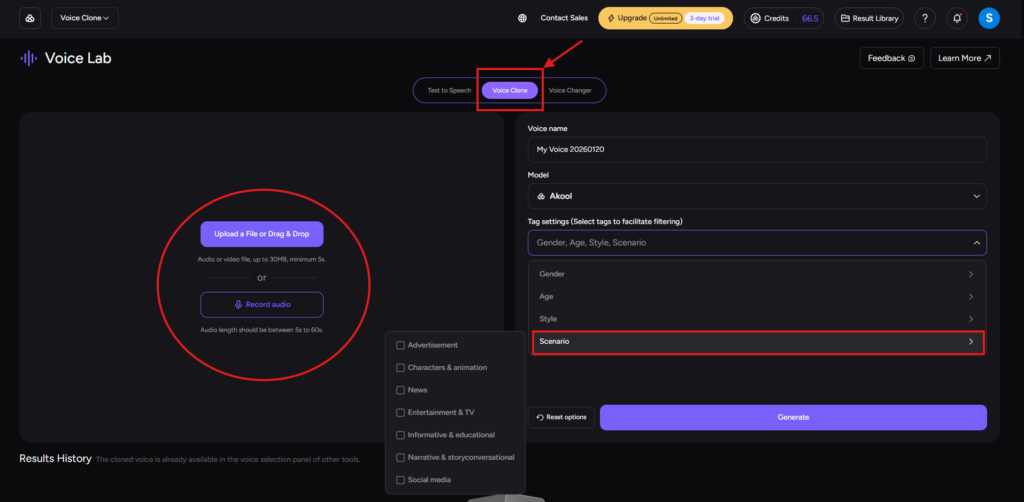
I personally tried this voice clone feature, and it appears truly accurate. You can also try with any voice.
Akool AI Voice Changer: Explore the Dashboard
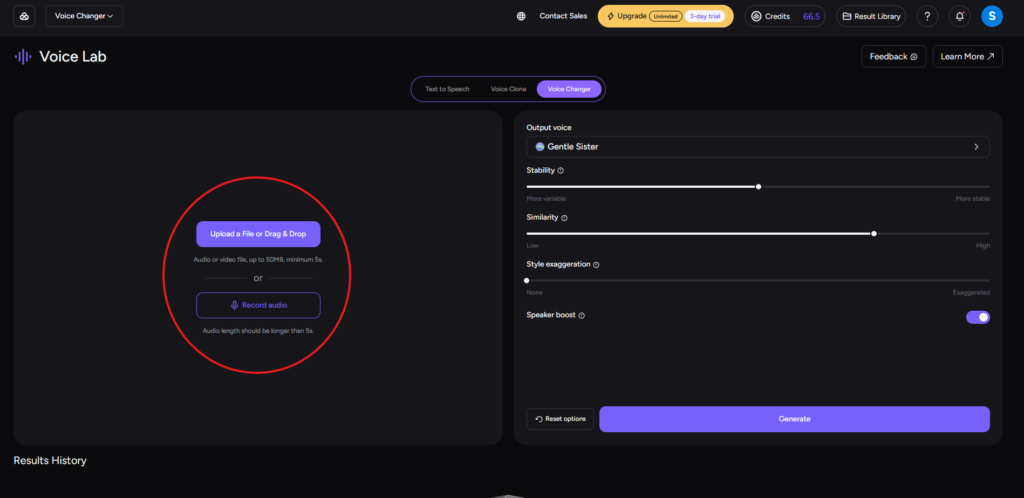
Now, let’s move to the next important feature, which is the voice changer. Here, you can change any pre-recorded or live voice into a different voice with the help of pacing, tone, etc.
Simply drag and drop your pre-recorded voice, adjust settings and hit generate. Wow!!! Your voice is ready with a different and attractive tone.
Advanced Tips for Better Results
After generating many voiceovers, I picked up some tricks that dramatically improved output quality:
1. Write Scripts for AI Voices, Not Humans
AI voices process text literally, so:
- Use punctuation deliberately: Commas = short pauses. Periods = longer pauses. Ellipses (…) = dramatic pauses.
- Avoid run-on sentences: Break complex ideas into shorter sentences for better flow.
- Spell out acronyms if needed: If Akool mispronounces “SEO,” write it as “S-E-O” or “search engine optimization.”
2. Test Multiple Voices for Brand Fit
Always spent 10 – 20 minutes auditioning voices before settling on your brand voice. Here’s my process:
- Shortlist 3–5 voices that match your brand vibe (professional, friendly, authoritative, etc.).
- Generate the same 30-second script with each voice.
- Share with your team members to know which sounds most “on-brand.”
- Save your winner as a favorite for future projects.
3. Layer Background Music Post-Production
Akool generates clean voiceovers, but they can feel “naked” without context. Try to import the audio file into your video editor (Premiere Pro, DaVinci Resolve, or even free tools like Audacity) and add:
- Subtle background music.
- Light EQ adjustments if needed.
- Fade-ins and fade-outs for polish.
This 5-minute post-production step elevates your AI voiceovers to professional-grade quality.
Akool AI Pricing Plans (2026 Breakdown)
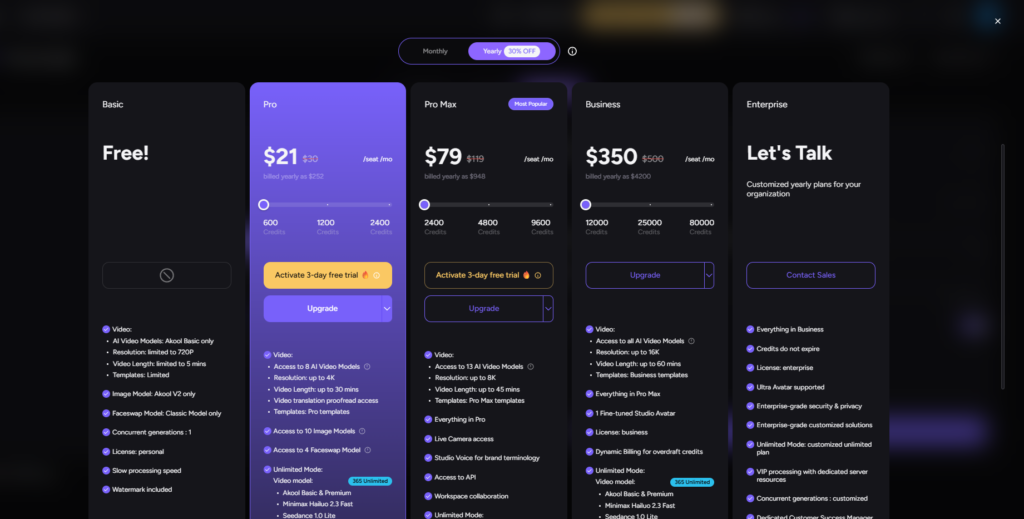
Akool Ai offers you a free trial so that you can test its features and make a choice whether you can add it to your content creation list or not. This is a great opportunity to test this AI tool without spending a single penny. Here, you can see the pricing plans…
My Final Thought
Based on my hands-on experience, Akool AI Voice Generator is excellent for 80% of voiceover use cases like YouTube narration, educational content, marketing videos, product demos, tutorials, and multilingual campaigns. It’s a productivity powerhouse that genuinely saves your time and money without sacrificing quality.
But it may not suit you if your brand demands celebrity-level voice talent or ultra-premium audio.
Is Akool AI Voice Generator Worth it?
Yes, and absolutely. If you create content regularly and value your time and budget without losing quality, then Akool AI voice generator is worth every penny.
FAQs
Is Akool AI free to use?
Yes… Akool AI offers you a free trial for testing features.
![Read more about the article Fish.audio vs ElevenLabs: My Hands-on Experience with Both These Text-to-Speech [2026]](https://saas24reviews.com/wp-content/uploads/2026/02/Fish.audio-vs-ElevenLabs-2-300x200.png)