
There was a time when I usually played PUBG with my friends, enjoyed the headshot moments and felt proud.
Then I got worried about how to capture the moment and showcase my headshot skill because sometimes my best clipping software fails exactly when an important moment happens.
LOL
However, somehow I managed to clip my gameplay, but one of the most frustrating parts was turning those clips into a publish-ready video for social media platforms.
And this is when I discovered some of the best clipping software for my gaming, along with some AI-based repurposing tools to turn those raw recordings into short-form content.
So, let’s explore some of the best free clipping tools and some of the best AI clipping software for your social media content.
TL;DR: The Best Game Clipping Software for Serious Gamers
I prioritise OBS Studio or Medal to capture gameplay with instant replay and minimal performance impact. However, only clip recording software is not helpful for you as a gamer because you have to edit those short clips, and for that, use tools such as Vizard, Choppity, Klap, SendShort, Submagic or VEED to edit those raw recordings into social media clips. Read the article because here I share some of the best clip software for PC that I used for my content creation journey, and if you like one of these, you can test it too.
Table of Contents
Quick Comparison: Best Game Clipping Software at a Glance
Clipping Softwares | Best For | Quality and File Output (Stars) | Free/Paid |
OBS Studio | Best gameplay clip recording & instant replay software | Free | |
Vizard | Turning recorded gameplay into short social clips | Free plan and paid plans | |
Choppity | Find and edit highlights from long recordings | Free plan and paid plans | |
SendShort | Best for multiple short video creation with captions, B-roll, effects, hooks | Free plan and paid plans | |
Submagic | Captions, effects, and fast short-form editing | Free plan and paid plans | |
VEED | Manual editing, captions, and social exports | Free plan and paid plans | |
Klap | Converting long gameplay videos into vertical clips | Free trial or limited plan and paid plans | |
Spikes Studio | Making long gameplay videos into multiple social clips | Free plan and paid plan | |
Canva | Thumbnails, simple edits, and gaming graphics | Free plan and Pro plan | |
Opus Clip | Automatically converting gameplay recordings into short clips | Free plan and paid plan | |
Medal | One-key gameplay capture and instant replay | Free plan |
How I Tested Each Game Clipping Tool
I tested these tools on the basis of the use case because a PC gamer does not only need clipping software, but they need a system to publish that gameplay to social channels.
This is why I separated the test into two groups.
- Gameplay capture test, where I tested OBS Studio and Medal for instant replay and video quality. My main focus is to know whether I can save the previous 30 seconds or several minutes without interrupting the game or missing the highlight.
- AI clipping and editing test, where I tested Vizard, Opus Clip, Choppity, Klap, Spikes Studio, Submagic, SendShort, Canva and VEED using the same recorded gameplay footage to check whether I can make raw gameplay clips into a publish-ready professional video.
Best Clipping Software for Gaming in 2026
Here are some of the best clipping software that I have tested for creating gaming clips. I have discussed them here in detail so that you get a clear idea about which tool to choose.
1. OBS Studio: Best Overall Clipping Software for Serious Gamers
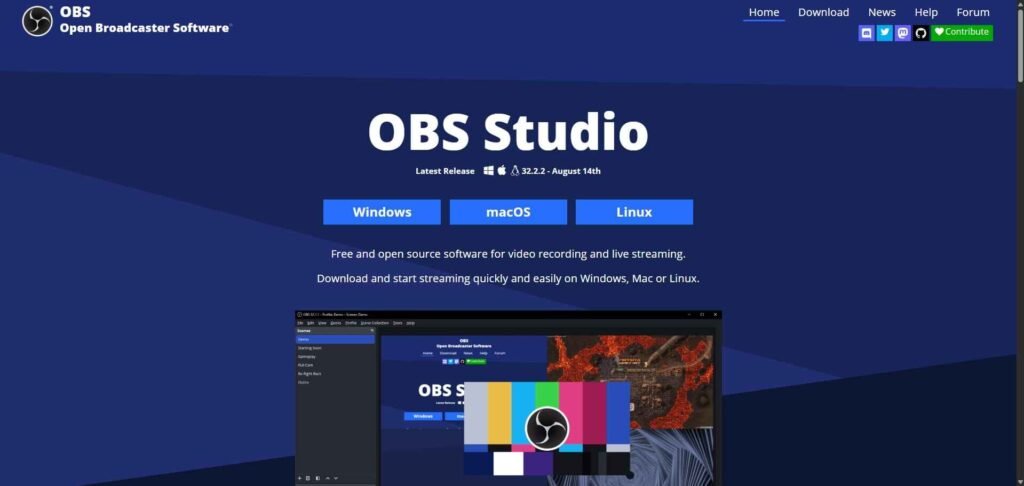
OBS Studio is one of the best clipping tools if you want reliable PC gameplay capture, instant replay, and full control over video quality. I found a few extra settings during installation, but that was absolutely fine because that extra control matters when you care about FPS, audio sync, file size, and recording stability.
But remember, OBS Studio is not that kind of clipping software that doesn’t affect FPS.
Best For
OBS Studio is best for serious gamers or streamers who want one free tool for gameplay recording, streaming, and replay clips.
Supported GPUs and Operating Systems
Here is the system requirements page you can read. However, I had a basic computer, and it ran very smoothly without lag.
How OBS’s Instant Replay Works
OBS uses a feature called Replay Buffer, and obviously you have to check the box to enable this in the general settings section. Here you can set the hotkey to enable ‘save replay buffer’.
So, always set these settings to instantly record and save your gameplay. Here is a quick snapshot to do this
- Open Settings > Output > Replay Buffer ( choose how many seconds or minutes to keep. I usually keep it 60 sec) and check the ‘replay buffer’ button.
- Enable Hotkeys to save that replay buffer.
Video Quality and File-Size Result
I have found that OBS produces good output in terms of video quality. However, if you set higher-quality settings, then it creates larger files.
OBS Studio Pros & Cons
| What I Liked | What I Don’t Like |
|---|---|
| It’s a free clipping software with no watermark | The setup process is complex to a beginner |
| Reliable replay-buffer workflow | |
| High-quality screen capture for gaming YouTubers | |
| Supports game audio, microphone audio, and separate tracks | |
| Useful for both recording and streaming | |
| Suitable for gamers who want to edit clips later |
2. Vizard: Best for Turning Gameplay Recordings Into Social Clips

Vizard is an AI clipping and editing tool for turning long recordings into short videos for YouTube, TikTok, and Instagram Reels. Btw, it is not a gameplay capture tool. Instead, you first capture the gameplay with OBS Studio or Medal, then upload the recording to Vizard to make your clip publish-ready.
Best For
Vizard is best for gamers who already have long gameplay recordings and want AI to find possible highlights, add captions, and prepare multiple clips for social channels.
How Vizard Works
Vizard can speed up your social media clip creation process by transcribing your video, identifying potential highlight moments, and creating short clips. I really like the text-based editing feature that could be a game changer for anyone valuer their time.
Real-World Test Result
In my Vizard test, I uploaded a 47-minute video, and the tool generated 10 clips in roughly three minutes. The results were usable, and the editing dashboard gave me enough control to adjust the clip before exporting.
The same workflow can help with gameplay, but I think a headshot, combo, clutch play, or sudden reaction may need manual review because the tool cannot always understand game context from the transcript alone, and here it may need your help.
Video Quality and File Size
Vizard is useful for creating social-ready clips, but the final quality depends on the quality of your uploaded recording and the export settings. For better results, always try to capture gameplay at a high enough resolution and frame rate before uploading to Vizard.
Vizard Pros & Cons
| What I Liked | What I Don’t Like |
|---|---|
| Easy to use software | B roll sometimes miss your expections |
| Text-based manual editing feature | A little bit high price (I experienced this after testing many clipping softwares) |
| Satisfied accuracy in the auto captions | |
| Works well as a second step after OBS Studio or Medal |
3. Choppity: Best for AI Highlight Detection and Social Clips
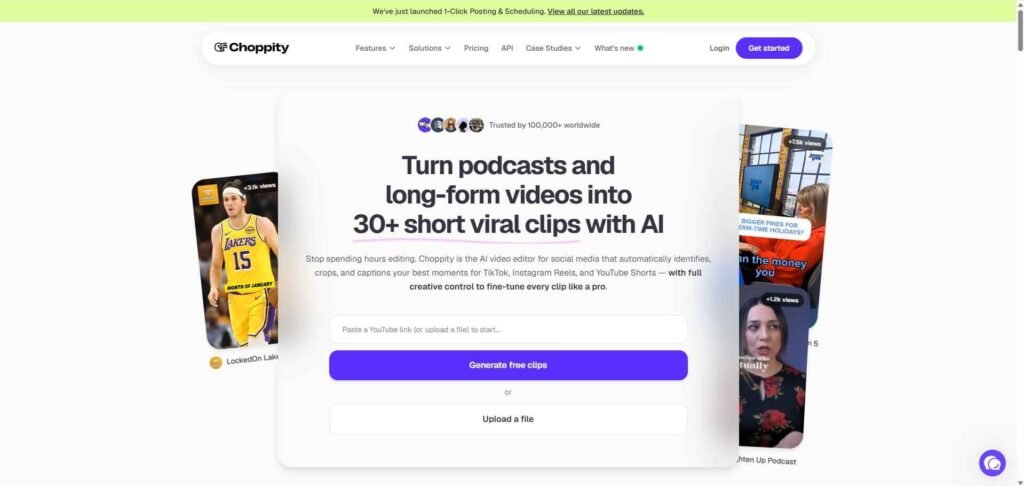
Choppity is an AI video editor that turns long video recordings into short clips for TikTok, Instagram Reels, and YouTube Shorts. This is not the apps like Medal or OBS Studio but here, you need to record your gameplay first with some of the best clipping tools, like OBS Studio or Medal, then upload the footage to Choppity to fine-tune.
Best For
Choppity is best for gamers who create commentary-heavy gameplay, livestreams, reaction videos, or tournament reviews and want AI to find interesting moments quickly.
How Choppity Works
You can upload an MP4 or MOV file, paste a YouTube link, or import a long recording. Choppity transcribes the video, identifies the possible highlights, creates short clips, adds captions, and automatically reframes footage for vertical platforms.
I highly recommend you to use this AI clipping software if your gameplay includes spoken commentary, reactions, jokes, or explanations because of the AI context feature. It helps to find possible hooks and memorable moments from your entire gameplay.
And obviously, for silent gameplay, the results may be less reliable. However, you should review or edit every suggested clip before publishing instead of assuming the AI found the best moment.
Video Quality and File Size
Just like Vizard, here also the final output depends on the quality of the original recording you provide to this tool and the selected export format.
Choppity Pros & Cons
| What I Liked | What I Don’t Like |
|---|---|
| Smart vertical reframing is really priseworthy | Sometimes you have to spend extra credit for failed or unusable generation |
| It’s easy and save a lot of time |
4. SendShort: Best for Fast, Automated Social Clips
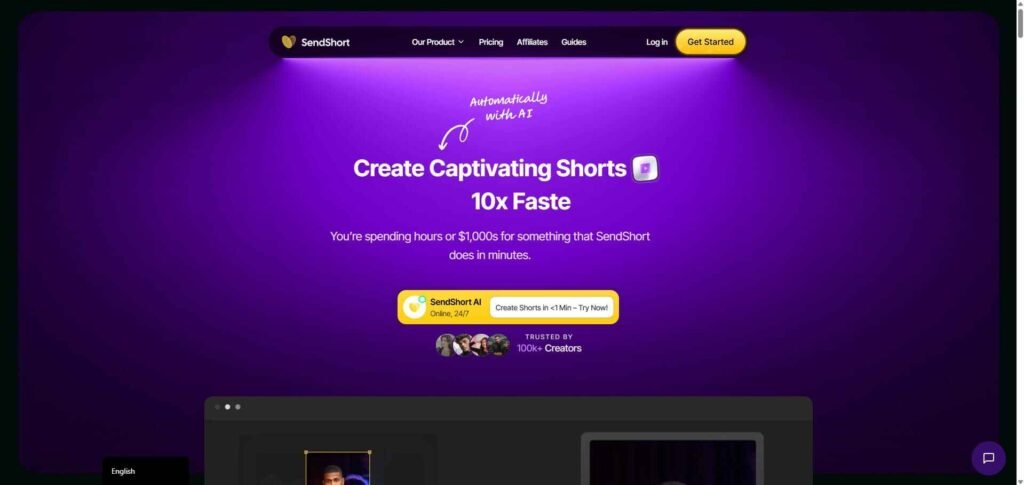
SendShort is a fast and automated clip software that allows you to create short-form videos from long videos. It has some of the best clipping features like auto shorts, AI auto editing, auto subtitles, etc so that you can make clip content in minutes.
Best For
SendShort is best for gamers who already have gameplay video and want to turn it into multiple short videos with captions, B-roll, effects, hooks, and platform-ready formatting.
How SendShort Works
SendShort is an automatic shorts generator, and you can easily operate it by just pasting your long video link and then clicking ‘auto generate.’ It has the feature to automatically create a shorts video from that content.
Video Quality and File Size
SendShort’s output quality depends on your original gameplay recording and selected export settings.
SendShort Pros & Cons
| What I Liked | What I Don’t Like |
|---|---|
| Easy to use and fast upload workflow | Not suitable for professional gameplay editing |
| Free trial without a credit card |
5. Submagic: Best for Captions and Fast Social Styling
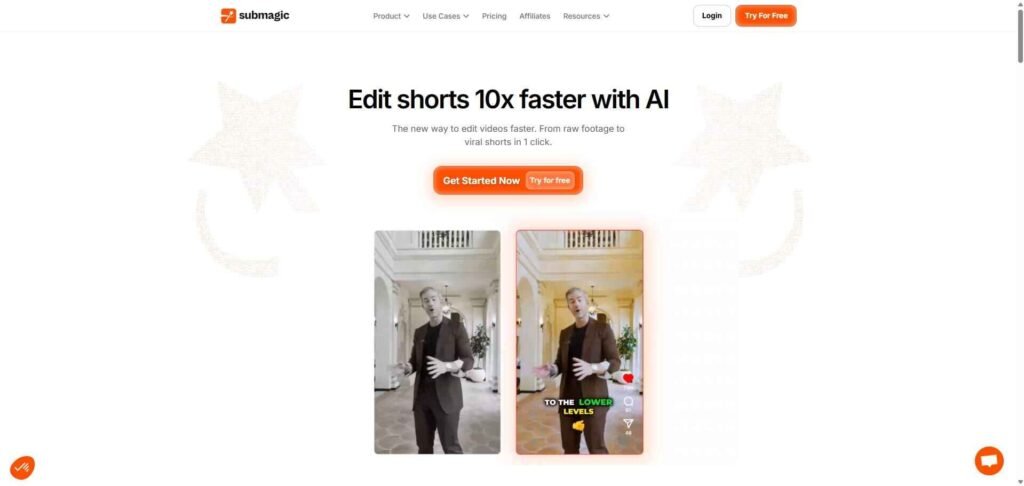
Submagic is an AI shorts maker with animated captions, B-roll, sound effects, zooms, and fast social publishing. It is useful after you capture gameplay with OBS Studio or Medal, especially when your goal is to make a clip look more dynamic for TikTok, Shorts, or Reels.
Best For
Submagic is best for gamers who already have a short highlight and want to add bold captions, visual effects, automatic zooms, music, or B-roll without spending a long time inside a traditional editor.
How Submagic Works
You upload a gameplay clip or YouTube link, then let Submagic process the video. Its tools can. Its captions support 123 languages, and its short-form workflow can export videos up to 4K and 60 FPS, depending on the plan and source footage.
Video Quality and File Size
Submagic can make a basic gameplay clip look more suitable for social media. Btw, the original recording quality still determines the sharpness of the final export.
Submagic Pros & Cons
| What I Liked | What I Don’t Like |
|---|---|
| Very easy interface and saves a lot of time | You may experience slow rendering for long videos |
| Customer service is exceptionally well |
6. VEED: Best for Manual Editing and Social Exports
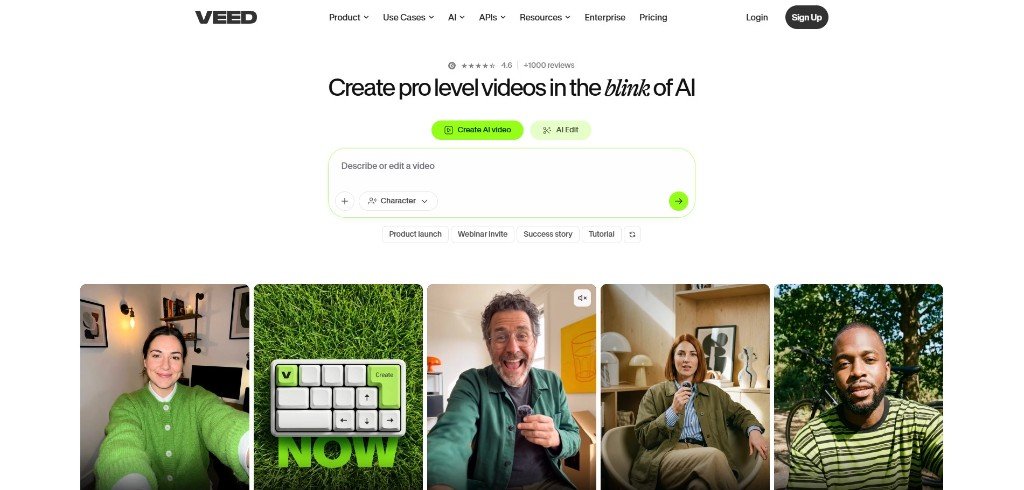
VEED is a browser-based video editor for short-form content that gives you more manual control after recording gameplay. It includes trimming, captions, resizing, audio tools, AI clipping, video conversion, and social-media export options.
Best For
VEED is best for gamers who want to review AI-generated clips, remove unnecessary moments by cutting a video, add captions, adjust timing, and prepare gameplay for several platforms from one dashboard.
How VEED Works
You first record your footage with OBS Studio or Medal, then upload it to VEED. From there, you can trim your video and make it publish-ready social media content.
Btw, it is useful when you do not want to accept the AI’s first result. I think gaming clips often need precise timing because a few seconds can determine whether the viewer sees the setup, the play, and the reaction.
You can use an AI-generated clip as a starting point, then manually adjust the cut so the moment makes sense to your audience.
Video Quality and File Size
VEED gives you more control over the final export than a fully automated clipping tool. However, quality and file size still depend on your source recording, resolution, and export settings.
VEED Pros & Cons
| What I Liked | What I Don’t Like |
|---|---|
| Very simple and easy to use for beginners | The AI clone feature sometimes feels weired |
| The content output looks fresh and professional |
7. Klap: Best for Automatically Turning Long Gameplay Into Vertical Clips
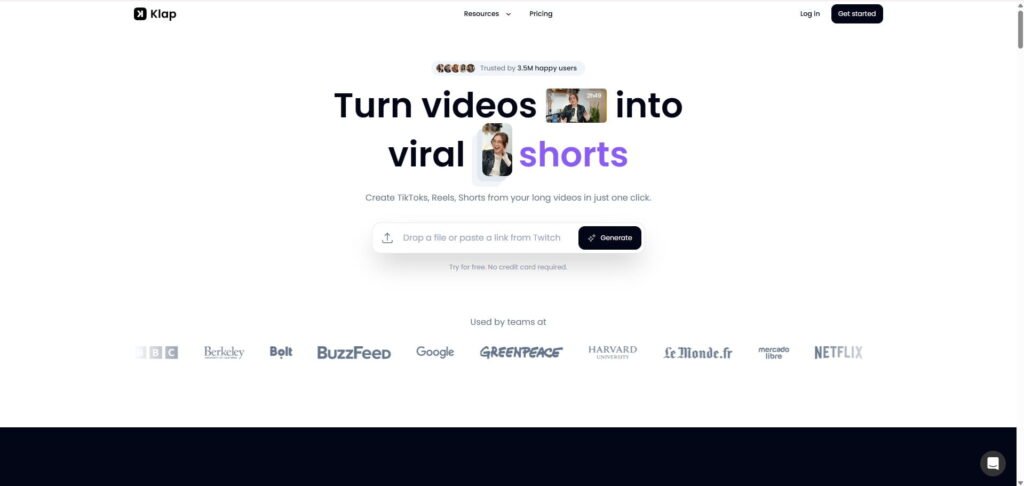
Klap is one of the best auto clipping software that turns your long videos into TikToks, Reels, and YouTube Shorts. It is designed for creators who want to upload one long recording and receive several short, vertically formatted clips without editing each one manually.
Best For
Klap is best for gamers who record commentary-heavy streams, reviews, tutorials, or reaction-based gameplay and want to create several vertical clips quickly.
How Klap Works as a PC Clip Software
You can upload a video file or paste a YouTube link. Then Klap analyses your video, identifies interesting topics, creates shorter clips, reframes the footage, and adds captions. You can easily customise fonts, colours, logos, and framing before publishing or scheduling the clips.
Btw, Klap automatically reframes videos for vertical platforms, and its main focus is to keep the important subject visible.
Video Quality and File Size
I would say that the final file size depends on your source recording and export settings.
Klap Pros & Cons
| What I Liked | What I Don’t Like |
|---|---|
| Easy to use for beginners | Free trial is very limited. You can make only one video for free, which has no value I think. |
| The AI used here looks high quality |
8. Spikes Studio: Best for AI Highlight Detection and Multi-Platform Publishing
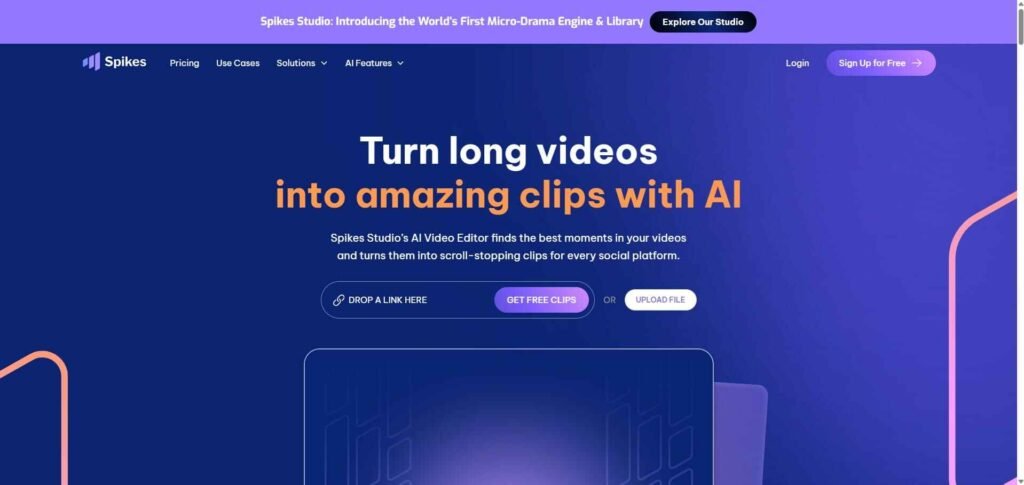
Spikes Studio is an AI clip generator that finds standout moments from your long gameplay videos and turns them into short clips for YouTube, TikTok, and Instagram. It is a post-production tool, so you still need OBS Studio or Medal to capture gameplay first.
Best For
Spikes Studio is best for gamers who want to turn streams, tournament recordings, or long gameplay videos into multiple social clips with captions, effects, and platform-specific formatting.
How Spikes Studio Works as Lightweight Clipping Software
Spike Studio works in an easy way, where you just need to paste the video link, and it detects potential highlight moments and deliver you useful clips to post on your social media platforms.
Its automatic zooms and captions can make your clip more suitable for social media, but competitive gameplay needs clean framing.
Spikes Studio Pros & Cons
| What I Liked | What I Don’t Like |
|---|---|
| AI highlight detection | Free plan carries watermark |
| Free trial available | |
| Trending captions available |
9. Canva: Best for Gaming Thumbnails, Overlays, and Simple Edits
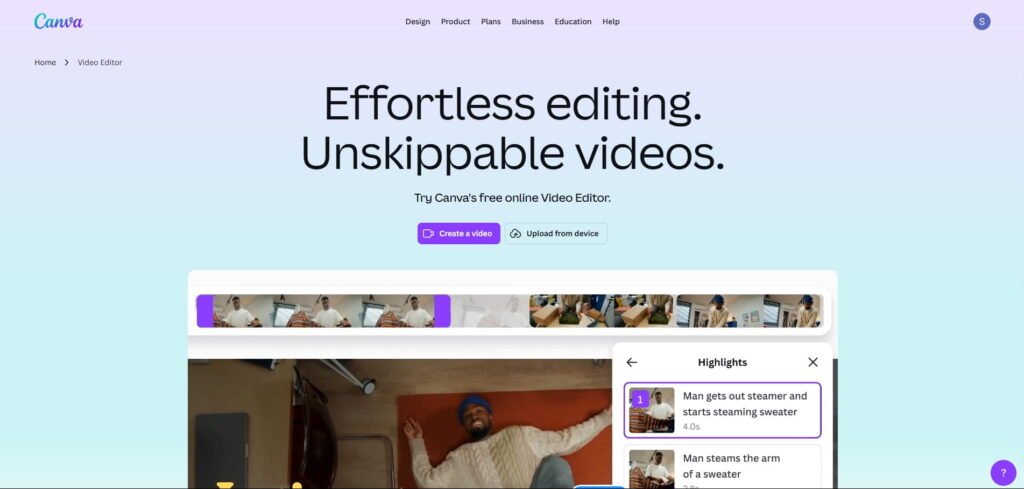
Canva is not a gameplay capture tool or a specialised highlight detector. It is best used after recording and clipping, when you need thumbnails, stream graphics, intros, overlays, or simple social edits that match your gaming brand.
Best For
Canva is best for gamers, streamers, and small gaming channels that need attractive visual assets without learning advanced design software.
How Canva Works as an AI clipping tool
Canva can help you to make your clip more attractive to your audience, as it has repeatable templates for thumbnails, banners, overlays and effects that you can use to make your short video watch-worthy.
I have been using Canva for a longer period of time to edit my social media clips and YouTube thumbnails, and it’s one of the best browser-based software I’ve used in the design space. It’s free and easy to use. However, it needs a paid plan if you want to use some of its high-end AI features.
Video Quality and File Size
Canva is suitable for short social edits, intros, overlays, and basic visual content. For clip videos, always check the final resolution and format before uploading because unnecessary animation, stock footage, or large elements can increase file size.
Canva Pros & Cons
| What I Liked | What I Don’t Like |
|---|---|
| It’s free to use | Not suitable for advance clip editing |
| Huge number of template library | |
| Very easy to use |
10. Opus Clip: Best for Repurposing Gaming Videos Across Platforms
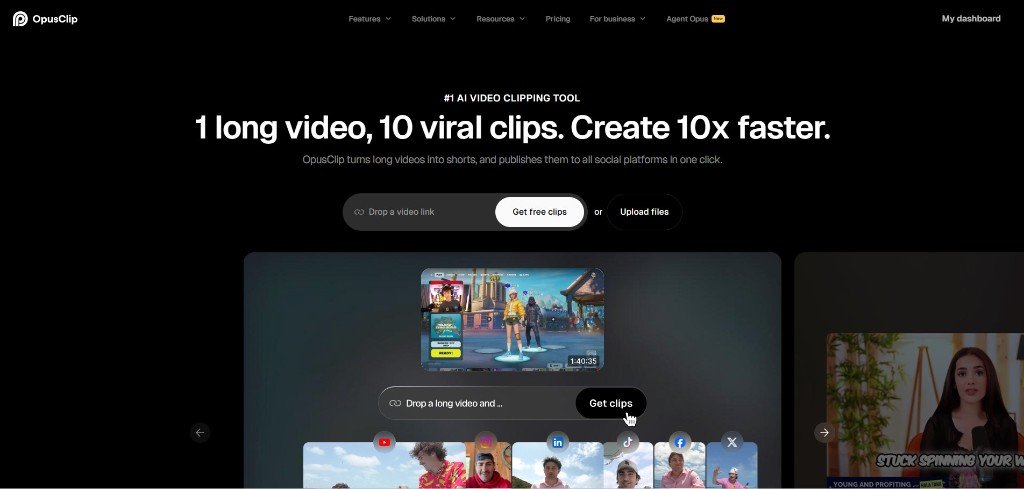
Opus Clip is an AI clipping software that turns long recordings into short videos for YouTube Shorts, TikTok, and Instagram Reels. To use this, you have to record the session first, then upload the footage or import it to make clips for your social channels.
Best For
Opus Clip is best for gamers who want to turn a long stream, tournament recording, or gameplay session into multiple social clips without manually reviewing the entire video.
How Opus Clip Works
You can upload a gameplay file or import a video from platforms such as YouTube, or you can upload manually. Then hit ‘Get clips in 1 minute ’, and it will start to work. However, it will take some time to generate those gaming clips.
Video Quality and File Size
Your final quality also depends on the uploaded recording. For sharper Shorts, capture the original gameplay at a suitable resolution and frame rate.
OpusClip Pros & Cons
| What I Liked | What I Don’t Like |
|---|---|
| It offers a FREE plan to test (You get 60 credits), No credit card needed | Free plan include watermark |
| Its a time saving tool with multiple features | Sometimes you may experience upload fails |
11. Medal: Best for One-Key Instant Gameplay Replay
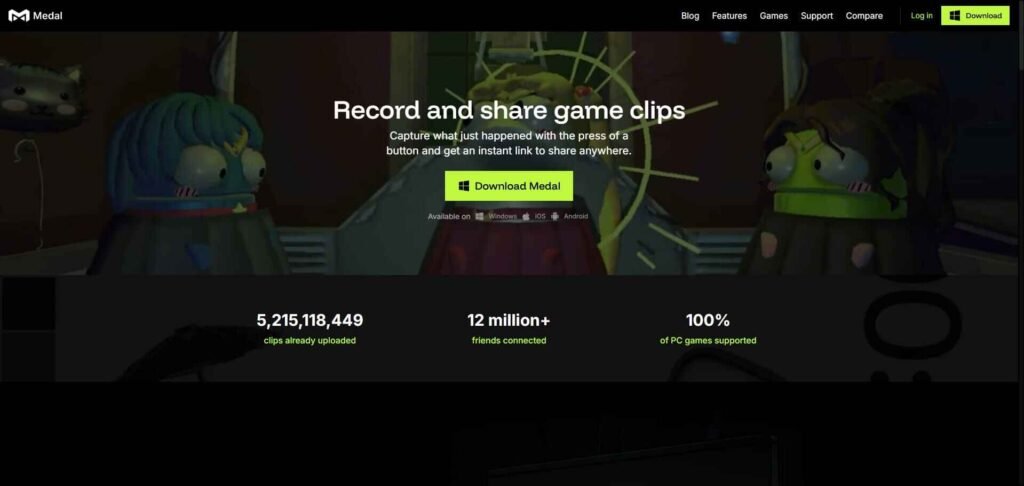
Medal is a dedicated gameplay capture and clipping tool for PC gamers, just like OBS Studio, the best free clipping tool. It records in the background so you can save the previous few seconds or minutes after a highlight happens, without starting a recording manually.
Best For
Medal is best for gamers who want quick setup, one-key replay, automatic highlight detection, and easy sharing without configuring a full streaming setup.
Supported GPUs and Operating Systems
Medal supports Windows 10 and Windows 11 and works with NVIDIA, AMD, and Intel GPUs.
Medal supports GPU acceleration as well as CPU-based recording. The available encoder depends on your hardware and settings.
How Instant Replay Works
Medal keeps a rolling buffer of gameplay in the background. When something important happens, press the default F8 hotkey, and it saves the previous section of gameplay.
Video Quality and File-Size Result
Medal supports recording up to 4K resolution and 144 FPS, depending on your hardware, encoder, and selected settings. It supports H.264, H.265/HEVC, and AV1 codecs, with clips saved locally and optionally uploaded to the cloud.
For most gamers, 1080p at 60 FPS is a practical starting point because it balances your smooth gameplay, quality, storage, and sharing speed.
Medal Pros & Cons
| What I Liked | What I Don’t Like |
|---|---|
| Free | You may experience unnecessary storage fill up |
| Easy to use | You may feel sudden lag during gameplay |
Final Verdict: The Best Clipping Software for Serious Gamers
If you want me to choose between OBS Studio and Medal, I will definitely go with OBS Studio. However, Medal should be my second choice for best clipping software.
And for editing recorded gameplay into social clips, my first choice would be Vizard, Choppity, or Submagic for manual edits and captions, and Canva for thumbnails and gaming graphics.